Reception desk playbook
Bookings, Check-in, Moves, and Checkout
Use this guide when creating a booking, receiving a walk-in, checking in a guest, changing rooms, extending a stay, or completing checkout. The application keeps the reservation, room state, folio, guest history, handovers, and audit log connected.
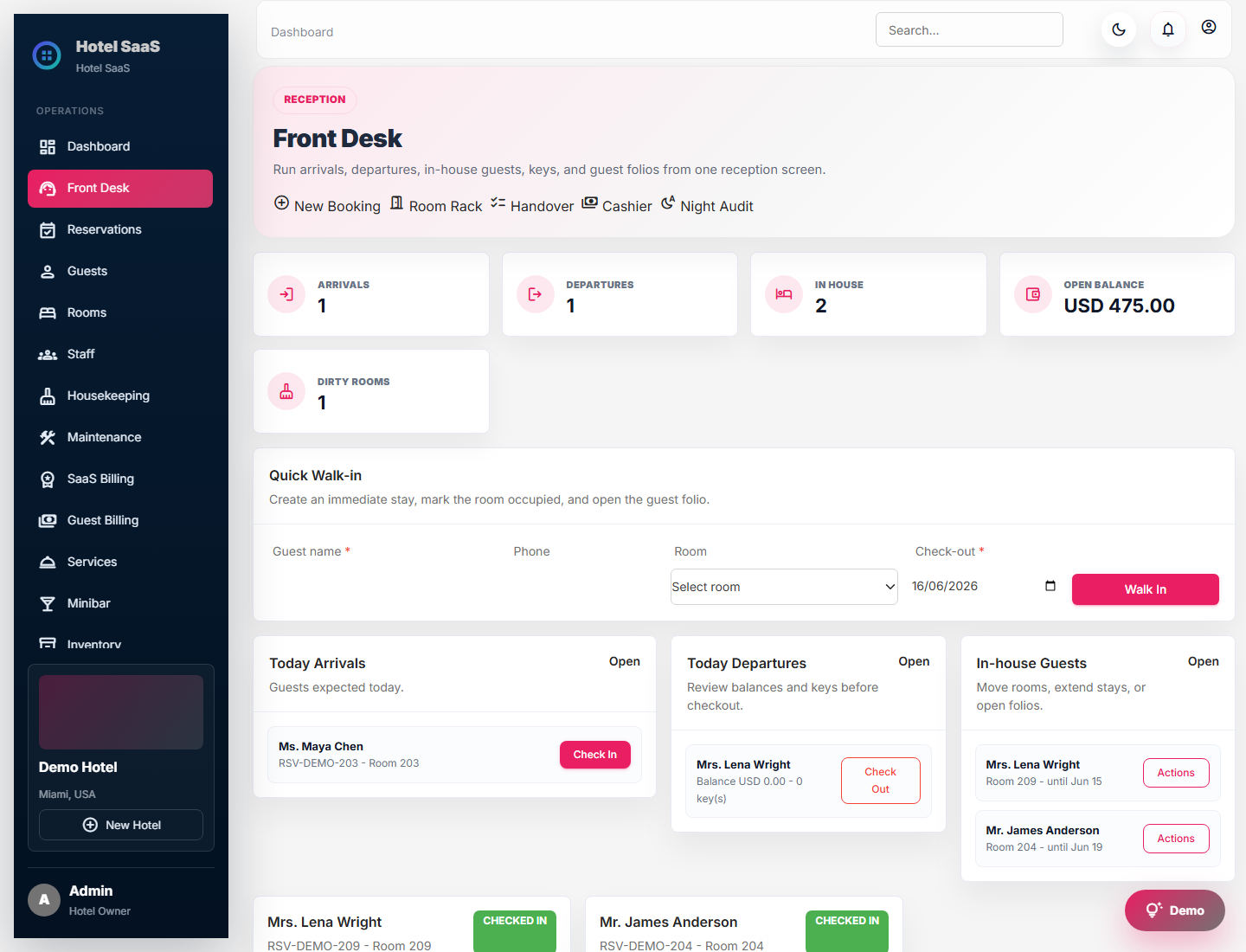
Real Front Desk screen from the packaged application. Current styling may vary with hotel branding.
What the Front Desk Page Shows
| Area | What it answers | What to do |
|---|---|---|
| Arrivals | Who is expected today and whether a room is assigned and ready. | Open the reservation, verify details, assign an inspected room, and begin check-in. |
| Departures | Who should leave today and whether the folio or handover blocks completion. | Review departure report, balance, keys, invoice, and checkout readiness. |
| In-house | Which stays are active right now. | Post charges, extend, move rooms, update occupants, or open the folio. |
| Room Rack | Which rooms are available, occupied, dirty, blocked, or awaiting action. | Select a room to view its operational history and available actions. |
| Handovers | Which arrival or departure condition reports need inspection, signature, dispute review, or completion. | Open the report or send the guest signing link. |
Create a New Booking
- Select New Booking from Front Desk or Reservations.
- Choose arrival and departure dates. Departure must be after arrival.
- Select the guest or create a new guest profile. Search first to avoid duplicates.
- Select a room type or exact room. If the room is not yet known, keep the booking at room-type level and assign later.
- Choose rate, source, adults, children, and applicable corporate or travel-agent relationship.
- Record deposit expectations, special requests, arrival time, and internal notes.
- Review the nightly rate snapshot and total before saving. The saved quote is retained for audit even if rates change later.
Booking field examples
| Field | What to enter | Example | Common mistake |
|---|---|---|---|
| Arrival / Departure | The dates the room is controlled by the reservation. | 15 July to 18 July | Using checkout day as an occupied night. |
| Adults / Children | Every person staying, not only the person paying. | 2 adults, 2 children | Exceeding room capacity without selecting another room. |
| Booking source | How the reservation reached the hotel. | Website, walk-in, corporate, travel agent | Choosing direct when commission should be tracked. |
| Internal note | Operational information visible to hotel staff. | Late arrival after 22:00; baby cot requested | Writing sensitive payment-card data in notes. |
| Deposit | The amount/method required by hotel policy. | USD 100 by payment link | Marking money as received before provider confirmation. |
Walk-in Guest
A walk-in combines booking and check-in, but the same safeguards remain. Search for the guest, confirm an inspected room, enter stay dates and occupants, collect the required deposit, create arrival handovers, and only then complete check-in. Never bypass identity, blacklist, payment, room-readiness, or handover checks simply because the guest is standing at reception.
Check-in Workflow
- Open the arrival and confirm guest name, occupants, dates, room, rate, and balance.
- Verify the room is available and housekeeping-inspected. If not, choose another compatible inspected room.
- Review guest alerts, blacklist state, documents, accessibility requirements, and special requests.
- Collect or confirm the deposit/payment required by policy. Provider confirmation is the payment authority.
- Complete the registration card and create one arrival condition report for every assigned room.
- The assigned Floor Manager inspects and signs; the primary guest or selected registered occupant reviews and signs.
- Select Check In. The room becomes occupied, the folio becomes active, and the action enters the timeline.
Move a Guest to Another Room
- Open the active stay and select Move Room.
- Choose an available, inspected room that matches capacity and operational requirements.
- Enter the reason: maintenance, guest request, upgrade, noise, accessibility, or another truthful reason.
- Complete a
move_outcondition report for the old room and amove_inreport for the new room. - Confirm rate or upgrade impact. The system updates room control, folio room charges, timelines, and housekeeping state.
Extend a Stay
Open the stay, choose Extend, select the new departure date, and review availability and the new rate. The extension must not overlap another reservation controlling the same room. If the room is unavailable, perform a planned room move instead. Confirm additional payment or credit authorization before saving when policy requires it.
Checkout Workflow
- Open the departure and review every room in a multi-room reservation separately.
- Complete the departure condition report against the signed arrival baseline.
- Post only accepted, Manager-approved discrepancy charges. A disputed item remains uncharged while its case is open.
- Review room, tax, POS, minibar, service, adjustment, refund, and payment lines on the folio.
- Collect the remaining balance or use an authorized credit/override workflow. Reception cannot silently waive money.
- Confirm invoice identity and tax details, collect key cards, then complete checkout.
- The room becomes dirty and enters housekeeping. The folio closes only when its accounting state permits it.
Cancellation, No-show, and Early Departure
- Cancellation: record who requested it, the reason, policy outcome, cancellation fee, and refund decision.
- No-show: confirm the arrival window and contact attempts before marking no-show; apply forfeiture only according to policy.
- Early departure: change the departure date, recalculate applicable charges, complete departure handover, and document any waived nights.
- Never delete a financial or reservation history item to “clean up” a mistake. Use correction, reversal, or audited status change.
Example: Checkout with a Disputed Item
Damaged lamp claimed at departure
The Floor Manager records “damaged,” adds a note and photograph, and suggests the snapshotted replacement cost. The guest disputes that the damage occurred during the stay and signs. Reception may complete checkout because the dispute releases the guest, but the charge is not posted. A Manager reviews the case later, waives or resolves it, and only an approved final charge updates the folio and payment link.
Front Desk Troubleshooting
| Message or symptom | Likely cause | Resolution |
|---|---|---|
| Room unavailable | Overlapping reservation, maintenance hold, occupied state, or hotel isolation. | Open Calendar/Room Rack, inspect the reason, and select a valid room or change dates. |
| Check-in blocked | Readiness, payment, blacklist, or handover requirement. | Complete the missing requirement; use an audited override only if policy allows. |
| Checkout blocked | Unpaid balance or incomplete departure handover. | Collect payment and complete reports. Disputed items may remain open without posting a charge. |
| Guest appears twice | A new profile was created instead of searching. | Stop creating more duplicates; ask an authorized user to review/merge according to policy. |