Support operations platform
TicketPro Support Desk Documentation
These docs cover the actual Laravel support app in this project: tickets, requesters, organizations, contracts, SLAs, playbooks, automations, reports, demo operations, delivery diagnostics, AI audit tools, status page, identity, installer, and recovery tools.
The previous documentation/ folder was template content copied from another product. It was static HTML and was not generated from this app's modules. This documentation set replaces those pages with app-specific content.
- Admins configure settings, roles, departments, users, integrations, updates, and recovery tools.
- Agents work ticket queues, replies, notes, SLAs, issue groups, subtasks, time entries, and playbook steps.
- Organization leads handle approvals, routing ownership, closure review, and account accountability.
- Requesters use the public support form, ticket tracking, or authenticated portal.
/dashboard- internal command center./tickets- queue, saved views, bulk work, and ticket detail./support- public ticket intake and tracking./portal- requester portal login and ticket workspace./knowledge-baseand/status- public self-service surfaces./operations-center- health checks, post-install verification, go-live readiness, demo mail evidence, and release controls./reports/operations-riskand/reports/ai-trust- executive operations and AI trust reporting./api/v1- scoped external API and inbound mailbox integrations.
Buyer Demo and Readiness
TicketPro includes a guided buyer demo for a support operator account. Demo Mode seeds a complete operator story, limits the visible demo account to buyer-safe permissions, hides full-admin credentials from demo surfaces, and provides Demo Control Center, Proof Export, Demo Mail Center, Operations Risk, AI Trust, security governance, and knowledge review evidence.
- Visible demo login: the login page shows the buyer demo account only when Demo Mode is enabled.
- Email proof without bulk sending: Demo Mail Center records simulated outbound mail, inbound webhook evidence, failed parses, retries, and one capped SMTP proof email when allowed.
- Production readiness: Operations Center includes post-install checks, Go-Live checklist, release acceptance, health export, deploy smoke history, and recovery actions.
Module Map
Tickets, linked cases, saved queue views, assignment, SLA state, customer replies, internal notes, finalized-ticket edit locks, admin edit approvals, Case Files, consultation completion, consultation recordings, subtasks, time tracking, collaboration drafts, dossier export, AI draft assistance, and playbook execution.
Organizations, portal members, support teams, routing rules, support contracts, entitlements, context hub records, status components, and public incident updates.
Reports, invoices, report schedules, automations, webhooks, API clients, delivery logs, Demo Mail Center, Operations Center, Go-Live readiness, release checklist, recovery snapshots, update delivery, AI Trust, Operations Risk, and identity controls.
Recommended Setup Order
- Install the app and lock the installer.
- Optional for training or sales: open Demo Mode, seed scenario data, review Demo Control Center, and run the guided walkthroughs.
- Configure Settings, email delivery, security, and branding.
- Create departments, users, roles, ticket categories, priorities, statuses, and business hours.
- Add SLA policies, custom fields, tags, reply templates, FAQ entries, and mailboxes.
- Create organizations, portal requesters, support teams, and support contracts.
- Enable playbooks, automation rules, webhooks, API clients, report schedules, and status page components.
- Run background scheduler commands, verify Post-Install and Go-Live checks, then monitor Operations Center, Delivery Diagnostics, Operations Risk, and AI Trust.
Product Evidence
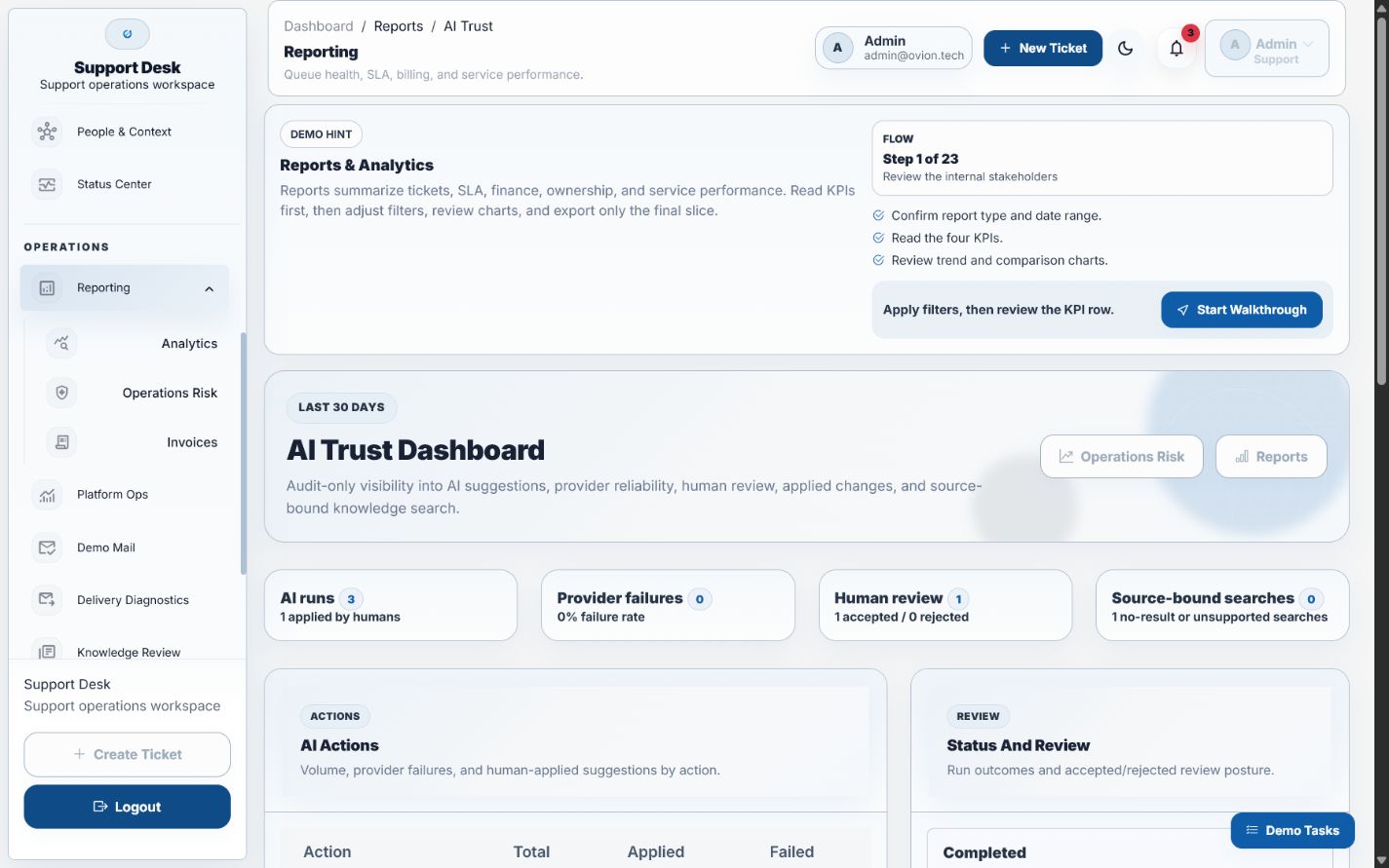
The AI Trust dashboard is included locally so reviewers can verify TicketPro's assisted-support controls without relying on an external image host.