Prepare assessment context
Institute and academic setup
Configure the institute, calendar, academic structure, subjects, classes, and assessment defaults before adding exams.
Institute administrator
Who does thisInstitute administrator
Before you startThe installation is secure and the first administrator can sign in
Successful outcomeA usable assessment context with correct time, structure, and ownership
What this means in plain language
Academic setup gives questions, assignments, schedules, reports, and students a shared context. It is not intended to replace the external system that owns admissions, fees, attendance, or learning content.
Step-by-step
- Open the setup wizard and confirm the active institute before entering information.
- Set the institute name, time zone, locale, branding, and permitted communication defaults.
- Create or import the academic year, term, class, section, subject, batch, and outcome records needed by assessments.
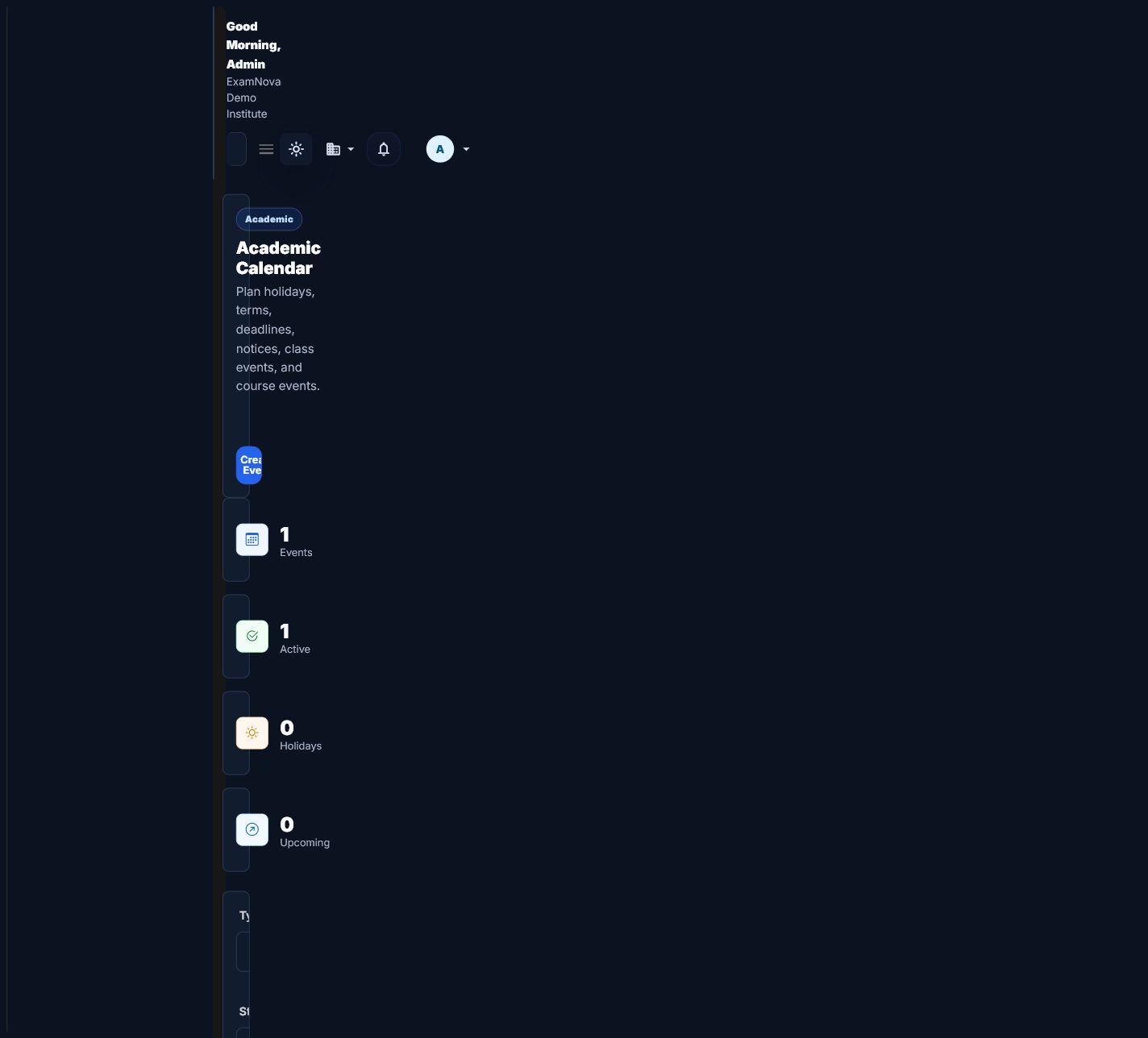
- Open the academic calendar and add assessment windows, holidays, or operational events.
- Assign teachers and examiners only to the context they manage.
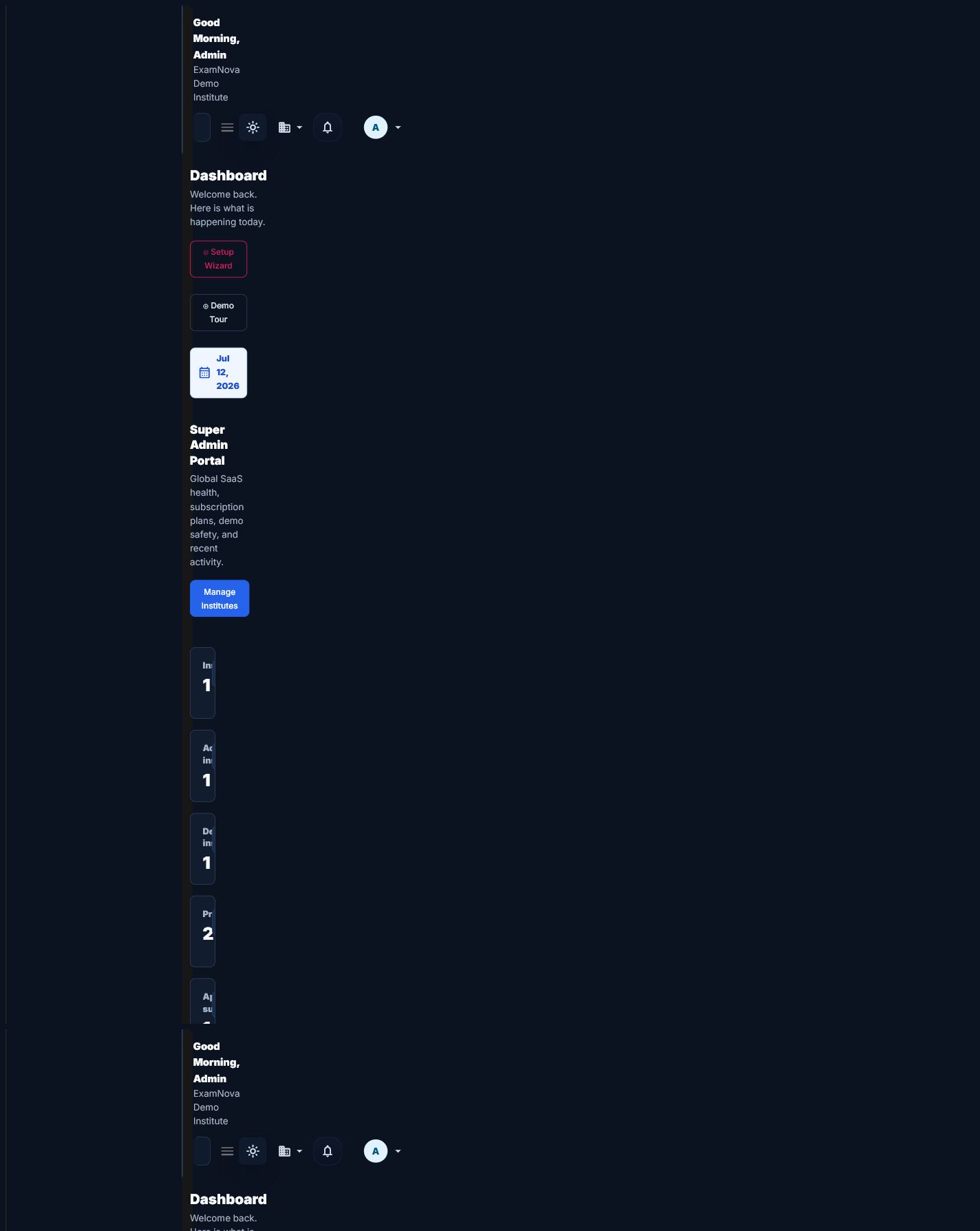
- Review the dashboard readiness indicators and resolve incomplete setup items before building an exam.


How to know it worked
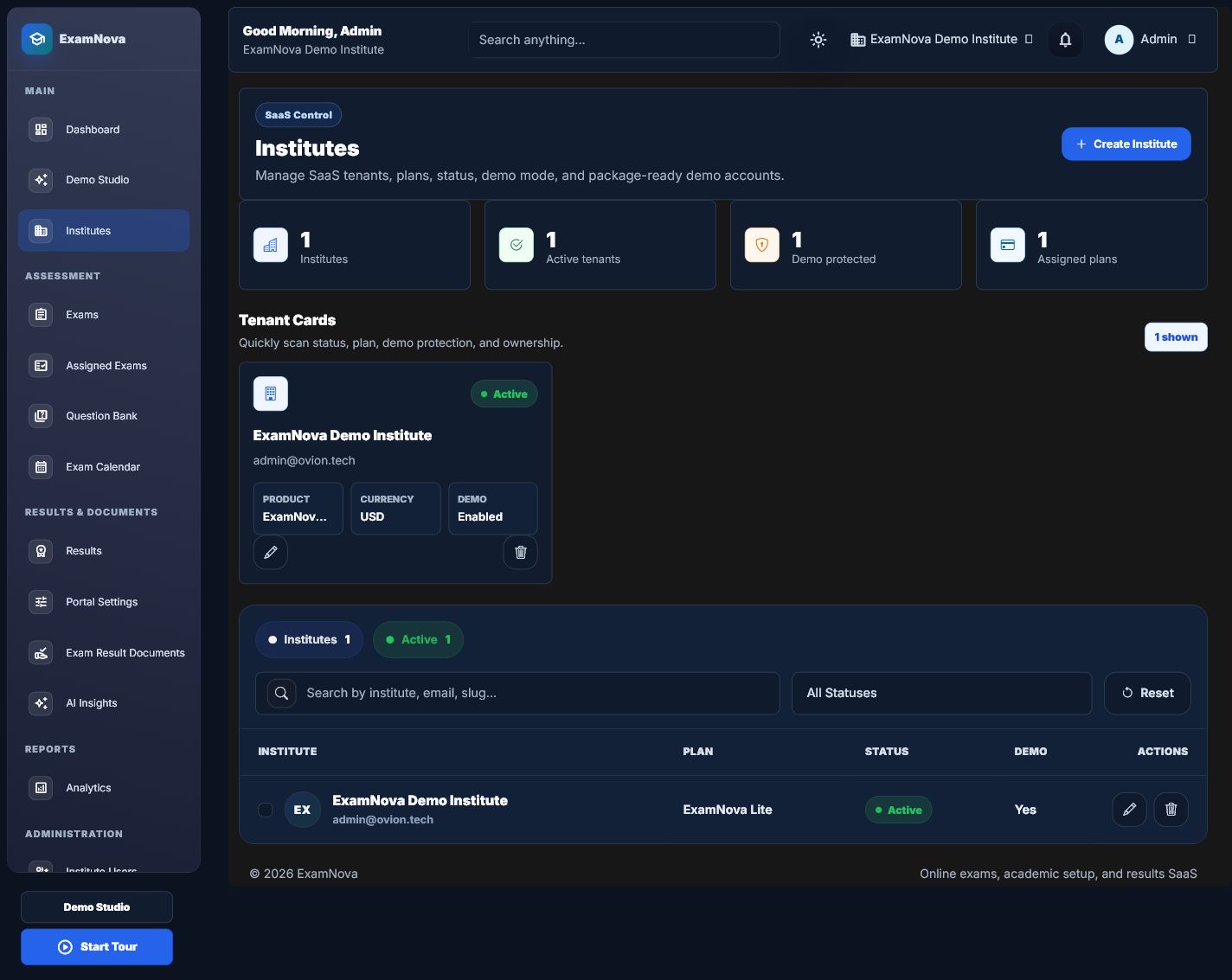
- The correct institute is shown in the application header.
- Academic years, terms, classes, sections, and subjects appear in selectors.
- Calendar dates use the intended time zone.
- Assigned staff see their permitted context and no other institute’s data.
Common mistakes
- Creating duplicate structures instead of fixing an import mapping.
- Changing the production time zone after exam schedules are published.
- Granting broad global roles for a single institute responsibility.
If something goes wrong
- Verify the active institute before concluding that a record is missing.
- Review import error rows for duplicate codes or unresolved parent records.
- Check the user’s institute membership and permission together when a menu is absent.
Privacy and security: Use institutional contact details and approved branding. Avoid placing personal student or staff information in names, codes, or public logos.
What to do next
Add or synchronize users, students, guardians, and assessment roster identifiers.