Production configuration
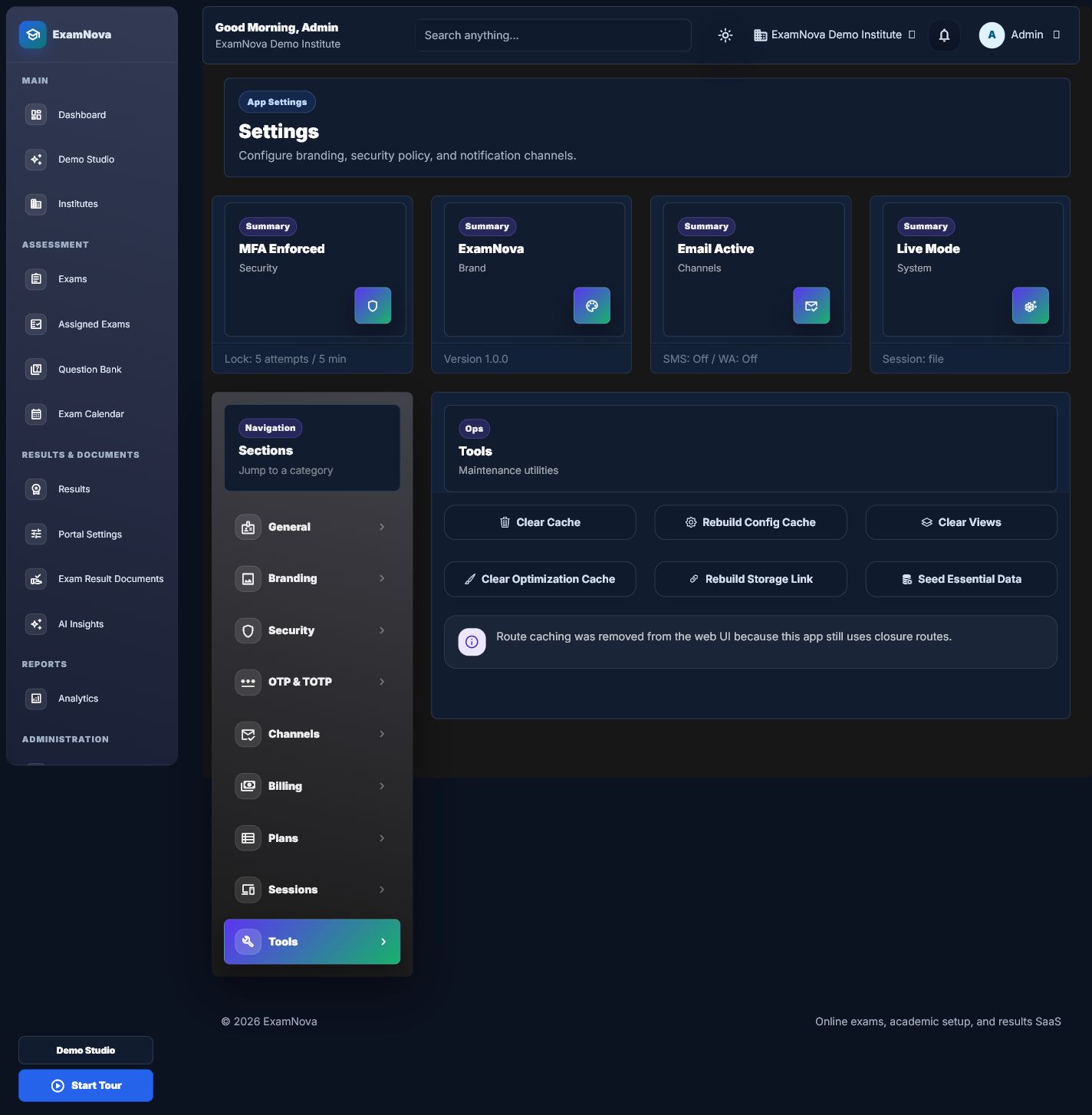
Settings, branding, sessions, and security
Configure the application deliberately, test each communication or security change, and keep secrets out of public pages.
Platform ownerAuthorized administrator
Who does thisPlatform owner for global settings; institute administrator for permitted institute settings
Before you startThe canonical URL, institute ownership, and production policy are known
Successful outcomeConsistent branding, secure sessions, tested channels, and documented operational defaults
What this means in plain language
Settings change how users experience the platform and how the server protects data. A convenient setting is not automatically a safe production setting.
Step-by-step
- Set the canonical application identity, URL, time zone, locale, and public branding.
- Configure login, password, lockout, verification, two-factor, session, and cookie policy for the deployment risk.
- Review active sessions and device-sign-out behavior.
- Configure communication channels with secrets stored only in protected settings or environment configuration.
- Set private storage, upload limits, evidence retention, and document access policy.
- Test each changed area with the relevant low-privilege account before production rollout.


How to know it worked
- The canonical URL and displayed time zone are correct.
- Cookies and redirects behave correctly over HTTPS.
- A low-privilege test account follows the intended security policy.
- Mail tests succeed without exposing stored secrets.
Common mistakes
- Enabling debug mode in production.
- Pasting secrets into screenshots, tickets, or browser-visible notes.
- Changing session or time-zone policy during a live exam without impact review.
If something goes wrong
- Clear and rebuild application configuration only through the documented deployment process.
- If settings appear stale, confirm whether they come from environment, global settings, or institute settings.
- Review logs using redacted identifiers and timestamps, never full credentials.
Privacy and security: Branding is public; security and channel secrets are not. Treat session lists, audit events, retention settings, and provider keys as restricted administration data.
What to do next
Configure and test notifications and email delivery.